How to Run an Online Sound Test and Troubleshoot No Sound
Running an online sound test verifies that your speakers, headphones, or external audio interface receive clean, properly routed stereo signals from your browser. Because SoundTestHQ generates every waveform live using the Web Audio API, this sound test online tool requires no MP3 downloads, plugins, or driver installs.
Follow these four steps to finish a complete sound check in under sixty seconds (you can also use the keyboard shortcuts ← for Left, Space for Stereo, → for Right, and Esc to stop):
- Set a Safe Reference Volume: Start with the master volume slider at 35% and set your operating system volume to a comfortable medium level. This protects both your ears and speaker drivers during high-output tones and sweeps.
- Isolate Left and Right Channels: Click Left Channel (L), then Right Channel (R), or launch Auto L → R → L+R for a quick left right sound test. Watch the L and R meters in the monitor strip above: when you trigger Left, audio must come strictly from your left speaker or left earbud with zero sound on the right.
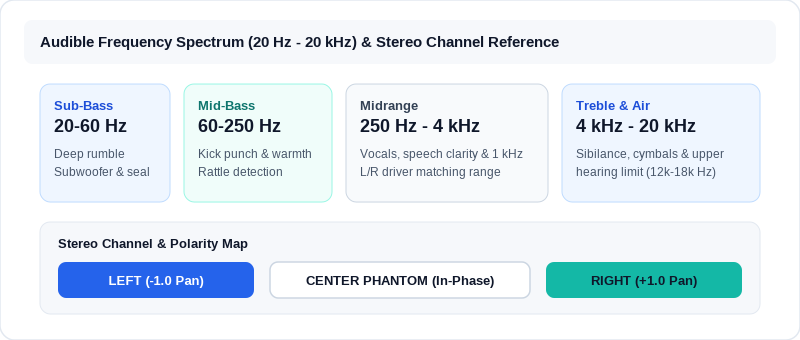
- Verify Stereo Center and Polarity (Optional): If you want more than a quick L/R check, expand Advanced Diagnostics below the quick L/R controls to switch between Warm Chord, Pure Sine, or Pink Noise and toggle Out-of-Phase (+/-) versus In-Phase (+/+). Properly wired stereo speakers produce a tight, centered phantom image when In-Phase and sound hollow or diffused when Out-of-Phase.
- Run the 20 Hz–20 kHz Frequency Sweep (Optional): Inside Advanced Diagnostics, click Auto Sweep (20 Hz → 20 kHz) or drag the frequency slider manually to confirm smooth playback across the audible spectrum with no unexpected silent gaps. If you hear buzzing or rattling at a specific frequency, that points to a low-frequency driver issue—see the Bass Test to pin down the exact Hz.
No Sound on Computer or Phone? 5-Point Check
If the blue and teal L/R signal bars in the oscilloscope monitor strip move while you hear silence, your browser is actively sending audio—the fault sits downstream in your operating system, volume mixer, cable, or wireless routing. Work through these checks before assuming a hardware failure:
- Sound Test Computer Checks (Windows & macOS): Confirm your browser tab is unmuted, open system sound settings to ensure your speakers (not an unpowered HDMI monitor or virtual device) are set as default output, check the Windows Volume Mixer for muted browser apps, and verify 3.5mm plugs are pushed firmly into the green Line-Out jack.
- Phone Audio Test Checks (iOS & Android): Press physical volume up while the tone is playing so you raise Media Volume rather than ringer volume, switch off Silent Mode on iPhone (which mutes web audio on several iOS versions), and temporarily toggle Bluetooth off in case sound is routing to paired earbuds or a nearby car stereo.
If your left right sound test reveals swapped channels, missing output on one side, or mono bleed across both ears, match your symptom in the diagnostic table below:
| Symptom During Sound Test | Likely Cause | Recommended Fix |
|---|---|---|
| Oscilloscope bars move, but zero sound | Wrong OS output device, muted mixer, or iOS Silent switch | Select speakers as default output, raise Media Volume, turn off iPhone Silent switch |
| Left sound plays in both ears | Mono Audio enabled in OS settings | Turn off Mono Audio in Windows, macOS, iOS, or Android accessibility settings |
| Left plays on Right and vice versa | Swapped speaker cables or reversed headset | Swap physical RCA/speaker wire sides or flip earbuds to the labeled L/R ears |
| One speaker is quieter than the other | OS balance offset or dirty 3.5mm jack | Reset L/R balance slider to center and test fine balance in our Headphone Test |
| Unusual vibration at low frequencies | Low-frequency driver or enclosure limit | Pinpoint the exact frequency in the Bass Test |
| Sound lags noticeably behind screen action | Bluetooth buffering or TV video processing | Measure gaming lag in Audio Latency Test or lip-sync in Audio Delay Test |
Why Use a Browser Sound Tester Instead of Audio Files
Traditional video or MP3-based checks suffer from streaming compression, YouTube audio normalization, and player buffering delays. A dedicated sound tester running native Web Audio synthesis sends pure, uncompressed mathematical waveforms directly to your operating system audio mixer. Every frequency from 20 Hz sub-bass to 20,000 Hz treble is synthesized at your device's native sample rate (typically 44.1 kHz or 48 kHz), giving you clean channel separation and repeatable audio test results across desktop and mobile browsers.
What This Online Sound Tester Measures
A comprehensive sound tester goes beyond confirming whether audio plays. By combining isolated channel triggers, noise generators, polarity inversion, and a continuous logarithmic sweep, this page lets you verify five core hardware traits on one screen:
- Channel Separation & Stereo Routing: Confirms that Windows, macOS, Linux, iOS, or Android delivers independent left and right PCM streams without collapsing stereo into mono.
- Speaker & Headphone Polarity (Phase): When two stereo speakers are wired with reversed positive/negative leads on one cabinet, low frequencies cancel each other out. Toggling the Out-of-Phase (+/-) mode lets you verify that In-Phase sounds fuller and better anchored in the center than Out-of-Phase.
- Pink Noise Balance Check: Unlike single-frequency sine waves, pink noise distributes equal acoustic energy per octave. Switching to Pink Noise reveals whether one earcup sounds muffled or brighter than the other across vocal frequencies. For deeper earcup panning and blind ear checks, continue to the Headphone Test.
- Audible Frequency Response (20 Hz – 20 kHz): Human hearing spans roughly 20 Hz to 20,000 Hz, though upper-frequency sensitivity naturally declines with age and most laptop speakers roll off below 120 Hz. Use the preset chips (60 Hz, 250 Hz, 1 kHz, 8 kHz, 16 kHz) or the continuous sweep to map your speakers' usable bandwidth, or dial single-Hertz tones in our Frequency Test.
- Real-Time Waveform & Level Verification: The dual-trace Canvas oscilloscope displays the Left channel in blue and the Right channel in teal. Watching both traces during a phase flip shows the 180-degree waveform inversion visually alongside the live VU bars.
Choosing the Next Specialized Diagnostic Test
Once your baseline sound test confirms both channels work, target specific hardware or sync issues with our companion browser tools:
- Testing Desktop Speakers or 5.1 / 7.1 Systems: Use the Speaker Test to inspect woofer, midrange, and tweeter driver bands individually, or verify multichannel room wiring with our Surround Sound Test.
- Diagnosing Earbuds or Over-Ear Headphones: Open the Headphone Test for blind L/R confirmation, smooth auto-panning sweeps, and independent left/right volume trim matching.
- Checking Low-End Extension & Exact Frequencies: Switch to the Bass Test for dedicated 20 Hz–250 Hz pads and rhythmic pulses, or open the Frequency Test for exact Hz tone generation and upper listening checks.
- Measuring Gaming Lag or Video Lip-Sync Offset: Run our two-stage Audio Latency Test to measure Bluetooth headset gaming lag in milliseconds, or use the Audio Delay Test to dial in A/V lip-sync offset for VLC, OBS, and smart TVs.
SoundTestHQ Free Access, Privacy, Limits & Browser Compatibility
SoundTestHQ (soundtesthq.com) is a free browser-based audio hardware diagnostic suite built on the Web Audio API. Every test on the site is designed to run immediately with transparent privacy and clear usage boundaries:
- 100% Free with No Daily Limits: All tools on SoundTestHQ are free to use with no paywall, no premium tier, no subscription, and no daily usage limits or run caps.
- No Download & No Account Required: Open
soundtesthq.comin your browser and start testing right away—no desktop software, mobile app, browser extension, or account sign-up is required. - Safe, HTTPS & Local Browser Processing: All test tones, stereo checks, pink noise, and frequency sweeps are generated 100% locally in your browser over HTTPS. SoundTestHQ does not record or upload your audio to a server. Only the Mic Test and optional acoustic echo check on the Audio Delay Test request temporary microphone permission strictly inside local browser memory. You can verify zero audio uploads yourself in 30 seconds via your browser DevTools Network tab or by testing in Offline mode after the page loads (see our Privacy Policy and Terms of Service).
- Hardware Sound Tests, Mic Check & Local File Analysis: This Sound Test page checks speakers and headphones using live generated tones with no file uploads required. To verify your microphone with live dBFS meters and zero-upload voice playback, use our Mic Test. To inspect existing MP3, WAV, FLAC, AAC, OGG, or M4A recordings for clipping, loudness, and frequency spectrum 100% locally in browser memory, open our Audio Quality Test. Learn more on About SoundTestHQ.
- Everyday Troubleshooting vs. Lab Equipment: Browser sound checks reflect your connected speakers, headphones, OS mixer, room acoustics, and personal hearing. SoundTestHQ is built for fast everyday diagnostics and setup checks—it does not replace calibrated acoustic lab hardware, measurement microphones, or clinical audiometry (see About SoundTestHQ for full scope boundaries).
- Works on iPhone, Android, Chrome & Safari: Compatible with modern Chrome, Safari, Edge, and Firefox across Windows, macOS, Linux, iOS, and Android. For mobile testing, connect wired or Bluetooth headphones first, turn off Silent Mode on iPhone Safari, and raise Media Volume while a tone plays.
No device notes yet. Run a test above and leave the first measurement.