How to Run a Complete Online Speaker Test
An online speaker test checks far more than whether audio is audible. Desktop studio monitors, bookshelf pairs, smart speakers, and laptop stereo drivers can suffer from reversed left/right cables, blown tweeters, dead woofers, inverted speaker wire polarity, or uneven room reflections. Running a structured speaker test isolates each speaker and frequency band in less than two minutes right inside your browser.
Follow these steps to inspect a single speaker or a stereo pair:
- Test One Speaker at a Time: Click Left Speaker (L) first, then Right Speaker (R), or run Auto Walk (L → R → L+R). If you are testing a mono Bluetooth speaker or soundbar, listen with both speakers selected or click Left/Right to confirm both drivers sum cleanly without cutting out.
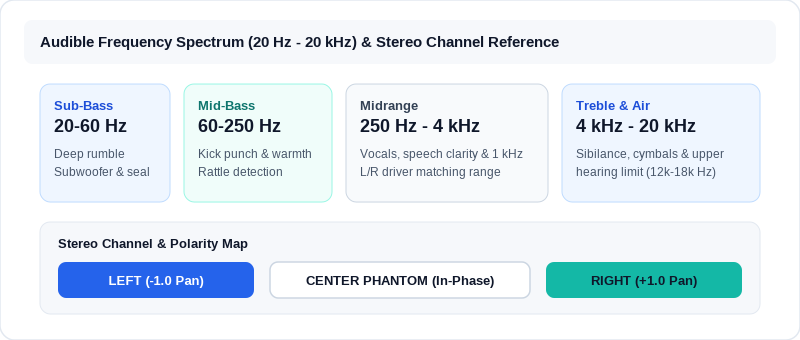
- Isolate Woofer, Midrange, and Tweeter Bands: Switch through Woofer / Bass (40–200 Hz), Midrange Vocals (300 Hz–3 kHz), and Tweeter / Treble (4–16 kHz). On two-way and three-way bookshelf speakers, placing an ear near each physical cone confirms that both the lower woofer and upper dome tweeter produce balanced sound.
- Verify Speaker Wiring Polarity (Phase): Select Full-Range Pink Noise on Both Speakers (L+R) and toggle between In-Phase (+/+ Normal) and Out-of-Phase (+/- Reversed). On properly wired speakers, In-Phase locks vocals tightly between the two cabinets while Out-of-Phase feels thin, hollow, and diffuse.
- Confirm Safe Volume Overhead: Keep the master slider near 35% while checking channels, then step slowly upward to verify there is no distortion at normal listening loudness.
How to Test Laptop, Phone, TV & Bluetooth Speakers
Every speaker enclosure behaves differently depending on amplification, wireless compression, and operating system audio routing. Use the device-specific guidelines below during your speaker test:
- Laptop Built-In Speakers (Windows & macOS): Confirm your built-in speakers (not an unpowered HDMI display or virtual meeting driver) are selected as the default output device, open the Windows Volume Mixer to verify your browser is not muted, and temporarily turn off spatial or loudness enhancements. Small laptop speakers naturally roll off below 120–180 Hz on the Woofer band, so focus on confirming clean Left/Right separation and clear midrange vocals without chassis buzz.
- Phone Speakers (iPhone & Android): Most modern smartphones combine a bottom-firing speaker with the top earpiece to create stereo Left and Right playback. Switch off Silent Mode on iPhone Safari (which silences Web Audio output on several iOS versions), press physical volume up while a test tone plays so you adjust Media Volume rather than ringer loudness, and hold the phone horizontally to check each grille individually for dust buildup or water-muffled output.
- Smart TVs, Soundbars & HDMI Receivers: Open the TV browser or cast/connect your laptop via HDMI, switch off aggressive Night Mode, Clear Voice, or Auto Volume Leveling presets that compress dynamic range, and run In-Phase (+/+) vs. Out-of-Phase (+/-) pink noise from your main seating spot. If dialogue trails picture after verifying your speakers play cleanly, dial in exact lip-sync offset with our Audio Delay Test.
- Bluetooth & Smart Speakers: For single mono Bluetooth speakers, select Both Speakers (L+R) and check both the Midrange and Tweeter bands for Bluetooth codec artifacts or cabinet rattle. If you paired two identical wireless speakers in TWS stereo mode, run Auto Walk (L → R → L+R) to confirm they did not drop back into mirrored mono or swap Left and Right sides.
Only One Speaker Working? Step-by-Step Fix
When a speaker test reveals audio coming from only the left or right cabinet, work through these five checks before assuming a damaged driver:
- Read the Live Signal Meters First: Trigger Left Speaker (L) and Right Speaker (R) while watching the oscilloscope and L/R bars at the top of the console. If the matching bar moves cleanly in the browser even though one speaker stays silent, your browser is outputting stereo properly and the fault is downstream in your operating system, cable, amplifier, or speaker driver.
- Center Your OS Left/Right Balance Slider: Operating systems occasionally drift off-center after driver updates or accessibility shortcuts. On Windows open Settings → System → Sound → Output Device Properties and confirm Left and Right channels match; on macOS check System Settings → Sound → Output; on iPhone/Android check Accessibility → Audio/Visual to confirm the L/R balance slider sits at center and Mono Audio is off.
- Reseat and Swap Analog Plugs or Cables: A partially inserted 3.5mm TRS plug or loose RCA jack commonly drops one channel entirely. Push connectors firmly home, then swap the Left and Right RCA or TRS plugs at the amplifier/speaker input—if the silent side switches to the opposite speaker, the fault sits in the cable or computer jack rather than the speaker cabinet itself.
- Inspect Passive Speaker Wire & Bi-Wire Jumpers: On passive bookshelf or floorstanding speakers, verify bare wire leads at both the amplifier binding posts and rear speaker terminals are clamped cleanly onto copper (not pinched over plastic insulation). If only the tweeter or woofer on one speaker is silent while the other driver plays, tighten or bridge the metal jumper plates linking the upper and lower binding posts.
- Cross-Check with Headphones & Source Files: Plug wired headphones into the same output jack and run our Headphone Test to confirm whether the computer port itself outputs both channels cleanly.
Speaker Placement, Wiring & Driver Troubleshooting
Use the table below to pinpoint physical setup issues uncovered during a speaker test:
| Observation During Speaker Test | Probable Cause | Recommended Fix |
|---|---|---|
| Tweeter silent on 4–16 kHz band | Blown tweeter dome, blown inline fuse, or loose crossover jumper | Inspect metal bridge bars between bi-wire binding posts on passive speakers |
| Woofer muted on 40–200 Hz band | Wrong subwoofer crossover setting or loose woofer lead | Check AV receiver crossover (typically 80 Hz) and inspect deeper extension in our Bass Test |
| Out-of-Phase sounds fuller than In-Phase | Red (+) and black (−) speaker leads swapped on one cabinet | Flip the positive and negative wires on ONE speaker terminal only |
| Left plays right or vocals pull off-center | Reversed RCA/TRS cables or desk boundary reflection | Swap L/R inputs, check speaker toe-in angle, and match L/R desk distance |
| Rear or center speakers do not fire | OS locked to 2.0 Stereo instead of 5.1/7.1 | Switch Windows/macOS output to multichannel and test all channels in our Surround Sound Test |
If pure browser test tones play cleanly but a specific music track or recording still sounds distorted, check the file directly in our audio quality test to rule out digital clipping or stereo imbalance in the source audio.
Room Placement & The Equilateral Listening Triangle
Even matched monitors fail an imaging speaker test when placed asymmetrically. Position your left and right speakers at equal distances from your ears—forming an approximate equilateral triangle—with tweeters aimed toward ear height. Avoid shoving one speaker tightly into a room corner while leaving the other beside an open hallway, as corner walls artificially boost 60–150 Hz mid-bass on one side and shift the stereo phantom center.
Checking Single vs. Multi-Speaker Systems
- Desktop 2.0 & 2.1 Systems: Confirm left/right separation first, then test the Woofer / Bass (40–200 Hz) band to verify your desktop subwoofer hands off smoothly to the left and right satellite speakers. For precise 20–250 Hz roll-off checks, use our dedicated Bass Test.
- Home Theater 5.1 / 7.1 Systems: After checking front stereo channels here, run our Surround Sound Test to ping Center, Surround Left, Surround Right, Rear Back, and LFE channels individually.
- TV Soundbars & Wireless Speakers: If dialogue trails picture after verifying your speakers play cleanly, dial in exact lip-sync offset with our Audio Delay Test, or return to the main Sound Test for a fast full-spectrum sweep and Headphone Test for personal headsets.
No device notes yet. Run a test above and leave the first measurement.