How to Run an Accurate Online Headphone Test
An online headphone test checks five essential traits in any wired headset, USB gaming headset, studio monitor headphone, or wireless earbud pair: left/right channel orientation, stereo balance, smooth panning across the soundstage, driver frequency clarity, and mechanical rattle under bass load.
Work through the console above in order for a complete headphone test:
- Check Left and Right Earcups: Click Play Left and confirm the 440 Hz tone sounds strictly in your left earcup. Next, click Play Right and confirm the 554 Hz tone plays exclusively in your right earcup.
- Pass the Blind L/R Ear Check: Click Blind L/R Ear Check so the tool secretly chooses one ear without illuminating labels on your screen. Guess which ear played; if you consistently get the opposite side, your earpads, inline cable, or Bluetooth L/R buds are swapped.
- Sweep the Stereo Soundstage: Drag the stereo pan slider from 100% Left through Center (0%) to 100% Right, or start Auto Pan Sweep. Healthy matched drivers glide across the center of your head smoothly without sudden volume dips or shifting pitch.
- Match Left and Right Driver Volume: Switch on Center (L+R) or Midrange (Pink Noise). If the sound pulls slightly left or right instead of sitting dead center, adjust the Left Ear Volume Trim or Right Ear Volume Trim sliders until centered. Noting the exact percentage offset helps you dial in permanent OS balance compensation or spot a failing driver.
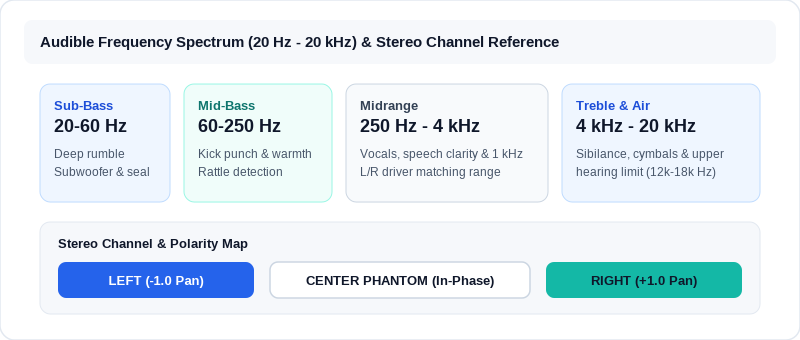
- Screen for Rattle and Treble Roll-Off: Run the Rattle Sweep (30–400 Hz) and listen for buzzing hair, loose screws, or torn diaphragm membranes inside each cup, then check 10 kHz Treble and 15 kHz Air for clogged ear-tip mesh or muffled highs. If distortion appears only on a specific song or recording rather than pure test tones, compare the file itself with our audio quality test to rule out clipping baked into the track.
Common Headphone Issues Found During Testing
When a headphone test uncovers imbalance, mono sound, or unexpected distortion, the root cause is often a software toggle or connector fault rather than broken hardware. Check these common scenarios:
| Headphone Test Result | Most Common Cause | Quick Diagnostic Action |
|---|---|---|
| Both sides play during Left-only test | Accessibility "Mono Audio" enabled | Disable Mono Audio in Windows Ease of Access, macOS Accessibility, or iOS Audio/Visual |
| Sound pulls left or right at 0% Pan | Wax buildup on earbud mesh or loose TRRS jack | Inspect/clean earbud nozzle grilles, reseat 3.5mm plug, and test with Pink Noise |
| Center sounds hollow or wide | Wiring phase inversion in aftermarket cable | Toggle Polarity Check (In/Out) to hear how proper In-Phase compares to Out-of-Phase |
| Buzzing only on one earcup at 40-120 Hz | Trapped hair against diaphragm or loose driver | Run Bass Test at 50-80 Hz to isolate the exact rattle frequency |
| Sound trails video on wireless headphones | Bluetooth codec buffering delay | Measure exact lag in ms with our Audio Latency Test |
Why Pink Noise Beats Sine Waves for Driver Balance
Human ears perceive slight frequency-response mismatches between left and right headphone drivers much more accurately with broadband Pink Noise than with a single 440 Hz sine wave. Because a sine wave tests only one narrow pitch, minor standing waves inside your ear canal can trick you into thinking one side is louder. Pink noise stimulates the entire midrange simultaneously, making subtle 1–2 dB driver imbalances immediately obvious when checking center imaging during a headphone test.
Checking Wired vs. Bluetooth Headphone Health
Different connection types fail in predictable ways during a headphone test:
- 3.5mm Analog Wired Headphones: Partial insertion into a laptop or phone adapter frequently shorts the Left and Right ring contacts together, producing thin mono sound or losing the center vocal channel. Twisting the plug gently while Center (L+R) plays immediately reveals worn TRS/TRRS contacts.
- USB & USB-C Gaming Headsets: Windows and macOS sometimes retain custom spatial surround profiles, chat-mix dials, or old equalizer presets that skew left/right levels. If your headphone test sounds lopsided only on one computer, test the headset on a second device or check our full Sound Test.
- True Wireless Earbuds (Bluetooth): Each earbud houses an independent battery, amplifier, and wireless receiver. A heavily clogged ear-tip screen on one bud commonly mimics a 20% volume loss. If you want to verify wireless delay alongside balance, follow up with the Audio Delay Test after confirming stereo balance here.
No device notes yet. Run a test above and leave the first measurement.