An audio delay test measures exactly how many milliseconds your sound trails or leads the picture on screen so you can dial that exact number into VLC, OBS Studio, smart TVs, or AV receivers. Start the visual metronome above, align the moving bar with the click using the −100 ms to +400 ms slider, and enter the resulting millisecond offset into your player or TV audio delay setting to eliminate lip-sync drift.
How to Apply Your Measured Lip-Sync Offset (VLC, OBS & TV)
Once the A/V lip-sync offset slider tells you how far out of sync your speakers, HDMI ARC soundbar, or wireless earbuds sit—for example, +185 ms—apply the opposite timing correction inside your playback software or television menu:
| App or Hardware Device | Where to Open Audio Delay Settings | What to Enter When Audio Trails Video by +185 ms |
|---|---|---|
| VLC Media Player | Press J / K during playback or open Tools → Track Synchronization |
Set Audio Track Synchronization to -0.185 s (advances audio earlier) |
| OBS Studio | Audio Mixer gear icon → Advanced Audio Properties → Sync Offset (ms) | Add +185 ms delay to your camera/video capture or -185 ms on audio |
| Smart TVs (LG, Samsung, Sony) | Sound → Expert / Advanced Settings → Digital Output Audio Delay / AV Sync | Lower TV audio delay toward 0 ms or enable Bypass/Passthrough mode |
| AV Receivers & Soundbars | Receiver Setup → Audio → Lip Sync / Audio Delay | Adjust in 5–10 ms steps until dialogue matches actor mouth movement |
| Kodi / Plex / PotPlayer | On-screen Audio Settings → Audio Offset | Shift audio ahead by -185 ms (-0.185 s) to cancel wireless buffering |
If your audio delay test finds a negative offset (for instance -40 ms, meaning sound arrives before the screen updates—common on heavy 4K TV motion-smoothing panels), add +40 ms of audio delay in your receiver or soundbar instead of advancing the audio track.
How to Run the A/V Sync Offset Test & Lip-Sync Standards
Mode 1 schedules a crisp 1100 Hz tick against a 60fps moving visual bar that crosses the center line every 800 ms. Follow these four steps for a repeatable A/V sync reading:
- Launch the Lip-Sync Metronome: Click Start Lip-Sync Metronome while watching the vertical center line on the screen you normally watch video on (laptop panel, desktop monitor, or cast TV).
- Observe Visual-to-Audio Alignment: Notice whether you hear the click after the blue bar flashes teal at the center mark (positive delay) or slightly before the flash (negative delay).
- Nudge in 5 ms or 20 ms Steps: Drag the slider or tap
+5 ms/+20 msuntil the sound and flash feel locked together. Positive slider values trigger the browser sound earlier so it cancels out wireless or HDMI buffering delay. - Verify With Eyes Switching Away and Back: Look away for two beats, look back at the center line, and confirm the click still feels locked to the flash. The readout equals your audio video sync offset in milliseconds.
(Need a microphone-verified hardware echo check on desktop speakers? Switch to Mode 2: Hardware Echo Check to fire three 2800 Hz acoustic pulses and measure speaker-to-mic round-trip milliseconds without relying on visual judgment.)
ITU Broadcast Lip-Sync Tolerance Benchmarks
Broadcast engineering standards (such as ITU-R BT.1359) show that viewers detect audio arriving too early before they notice audio arriving too late:
| Measured A/V Sync Offset | Viewer Perception | Recommended Lip-Sync Action |
|---|---|---|
| −20 ms to +45 ms | Locked In Sync | Within imperceptible lip-sync tolerance; no correction required |
| +50 ms to +110 ms | Minor Drift | Noticeable in close-up speech; optional fine tweak in media players |
| +120 ms to +240 ms | Clear Lip-Sync Lag | Mouth movements visibly precede words; apply offset in VLC/OBS/TV |
| +250 ms to +400+ ms | Severe Audio Delay | Switch TV out of Cinema processing into Game/Bypass mode or use HDMI eARC |
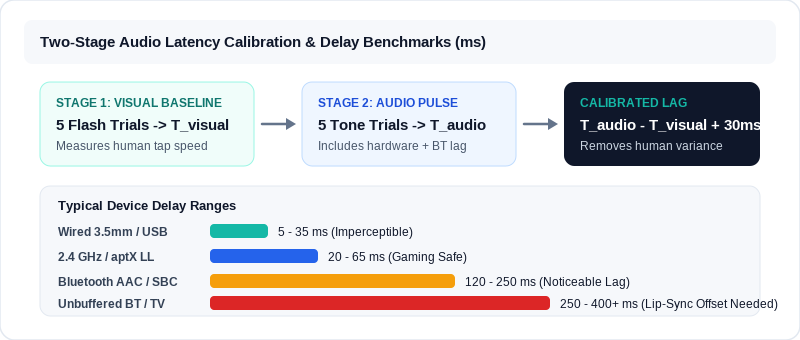
Testing interactive Bluetooth headphone delay for fast games rather than watching out-of-sync movies or streams? Compare wired vs. wireless reaction timing using our dedicated two-stage Audio Latency Test. You can also verify left/right channel wiring with our main Sound Test, check individual speakers on the Speaker Test, or inspect low-end roll-off down to 20 Hz in the Bass Test.
No device notes yet. Run a test above and leave the first measurement.